
Update (24 July 2026): the one-click bundle is working again. It connects on Claude Desktop 1.24012.1 or later, and the download is back on the Connect page with Novamira 1.10.1. See the announcement.
Novamira 1.7.1 adds a one-click way to connect Claude Desktop, with no config files to open and no JSON snippets to paste.
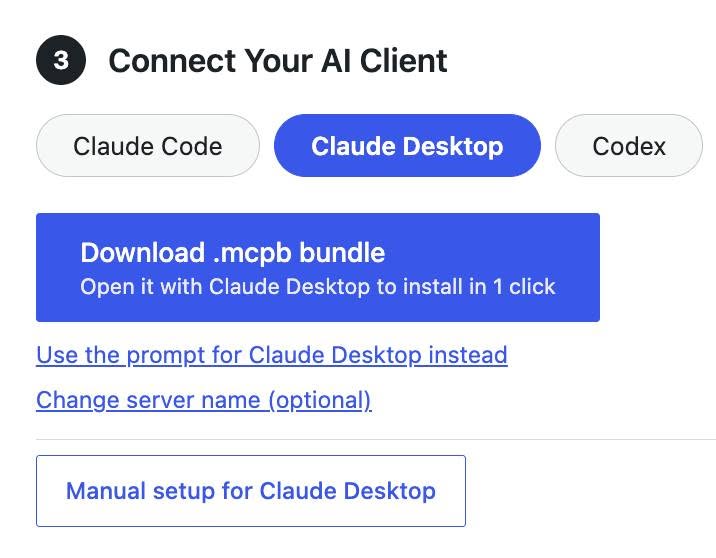
How it works: on the Novamira configuration page you generate an application password, open the Claude Desktop tab, and click Download .mcp bundle. The bundle packages everything Claude Desktop needs to reach your site in a single file. You open the file, Claude Desktop takes you straight to the Novamira install screen, you click Install, and the connection is ready in a few seconds.
Keep the bundle private: your application password lives inside the file, so anyone who gets it has the same full access to your site that you do. Do not share the bundle with anyone, and delete it from your computer once the setup is done.
To confirm the connection, open a new chat in Claude Desktop and ask it to connect to your site. Once connected, the agent has access to all of Novamira’s tools, and you can start working on your WordPress directly from the conversation.
This one-click setup is available in Novamira 1.7.1 or newer.